
Flight Path Animation: Animate Your Flight on a Map
Part of travel map animation for YouTube: everything Creator Studio can do for your videos, step by step.
A flight path animation is the classic opener for a travel video: a plane flies across the map from your home airport to the destination, and the viewer knows where the story begins. In Creator Studio you build it in under two minutes, with airport codes, the camera style you like and your own colours.
How to make a flight path animation
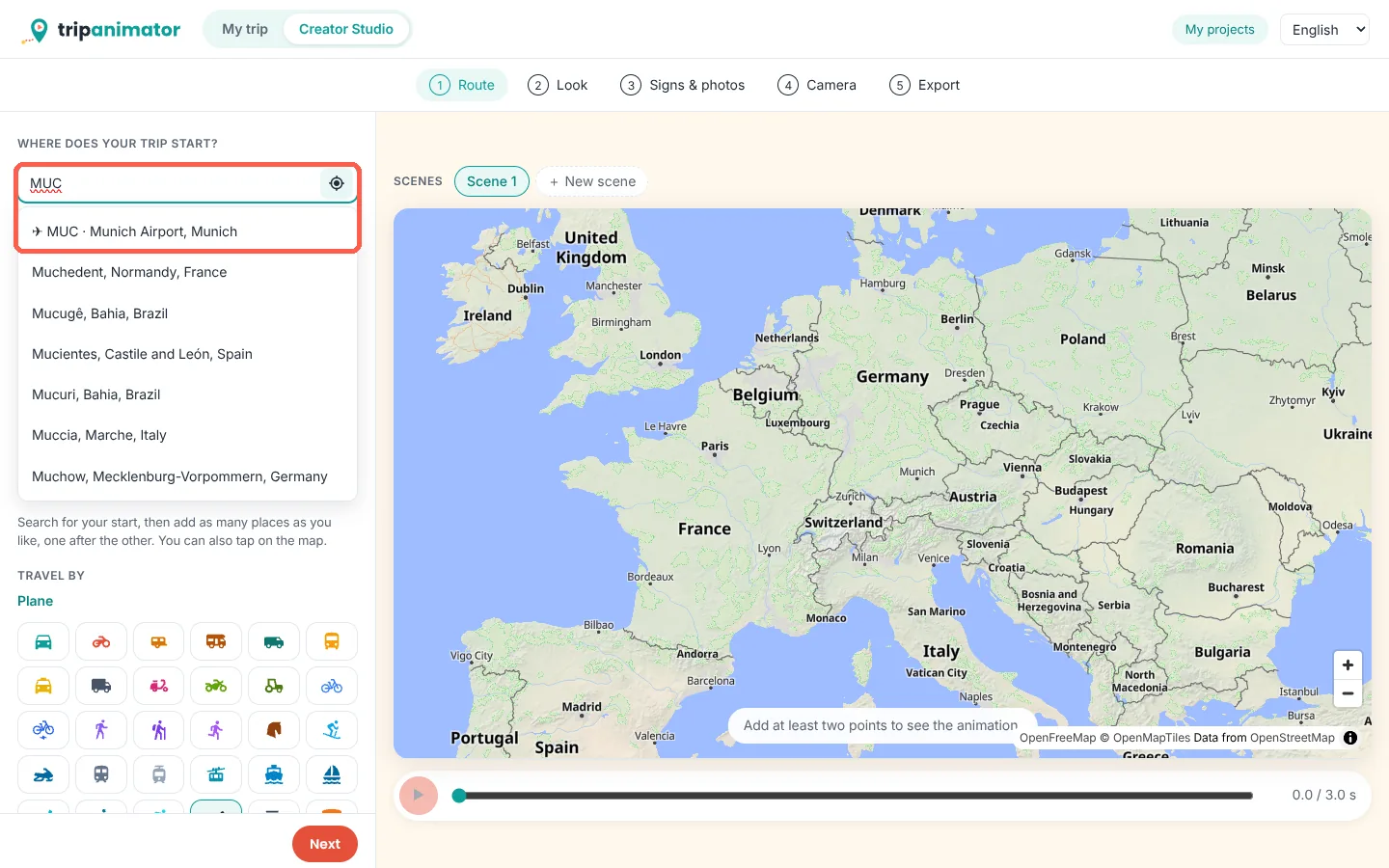
- Open Creator Studio and choose Plane under Travel by.
- Type the airport code of your departure airport, for example MUC, and pick the entry with the plane symbol. Then add the arrival airport, for example PMI.
- Add more legs if you like: a stopover, or switch to car after landing. Click a point and change the way of travel from there.
- Choose the look under Look: a calm map style like Light or Pastel lets the route stand out, Satellite looks more cinematic.
- Pick the camera under Camera: World trip starts wide and zooms in at the destination, Auto director chooses a wide shot for flights on its own.
- Export in 16:9 for YouTube and tick the box for a vertical 9:16 version for Shorts and Reels.
Airport codes, stopovers and the way home
Most larger airports can be found by their three-letter code (FRA, MUC, JFK, LHR, BCN, PMI). If a code does not show up, type the city name plus “airport”. For a long-haul trip with a stopover, add the stopover airport as its own point. The plane lands, and the camera keeps the whole journey in view.
The flight does not have to be the whole video. A route often starts with the flight and continues by rental car or ferry. Click the arrival airport, set the next leg to Car and the line follows the roads from there. How switching the way of travel works.
Which camera style suits a flight?
| Style | Effect | When to use it |
|---|---|---|
| World trip | Globe and wide views, zooms in only at the destinations | Long-haul flights, several countries |
| Auto director | Wide shot for the flight, closer for the drive after it | Flight plus road trip in one clip |
| Map maker | Whole route stays in view | Itinerary overview at the start of a video |
| Social punch | Fast with zoom pulses | A 5 to 10 second flight in a Reel |
Compare them with the same route: all animation styles with examples.
Tips for a flight intro that works
- Keep it short: 4 to 8 seconds is enough for an intro. Use Speed in the Export step or turn off Automatic length to set the duration yourself.
- Put the title on the map: under Look, Extras, add a trip title for the title card.
- Use the same map style and colours in every video, saved as a style template, and your intros become part of your channel look.
Related
- Road trip route animation: continue the story on the road after landing
- Animated map for TikTok and Reels: the flight as a vertical clip
- Help: airports and flights
Try it with your own route
Open Creator Studio, add your places and you see the animation in the live preview right away. Free during the beta, no sign-up. Want to see everything else it can do? Go to the Creator Studio overview.