
Sounds at stops and travel sounds
Sounds make your map video feel alive: a short sound at every stop, and the sound of the vehicle while the route draws. All sounds are made by TripAnimator, so you can use them anywhere. They play in the preview and are part of the video.
Step by step
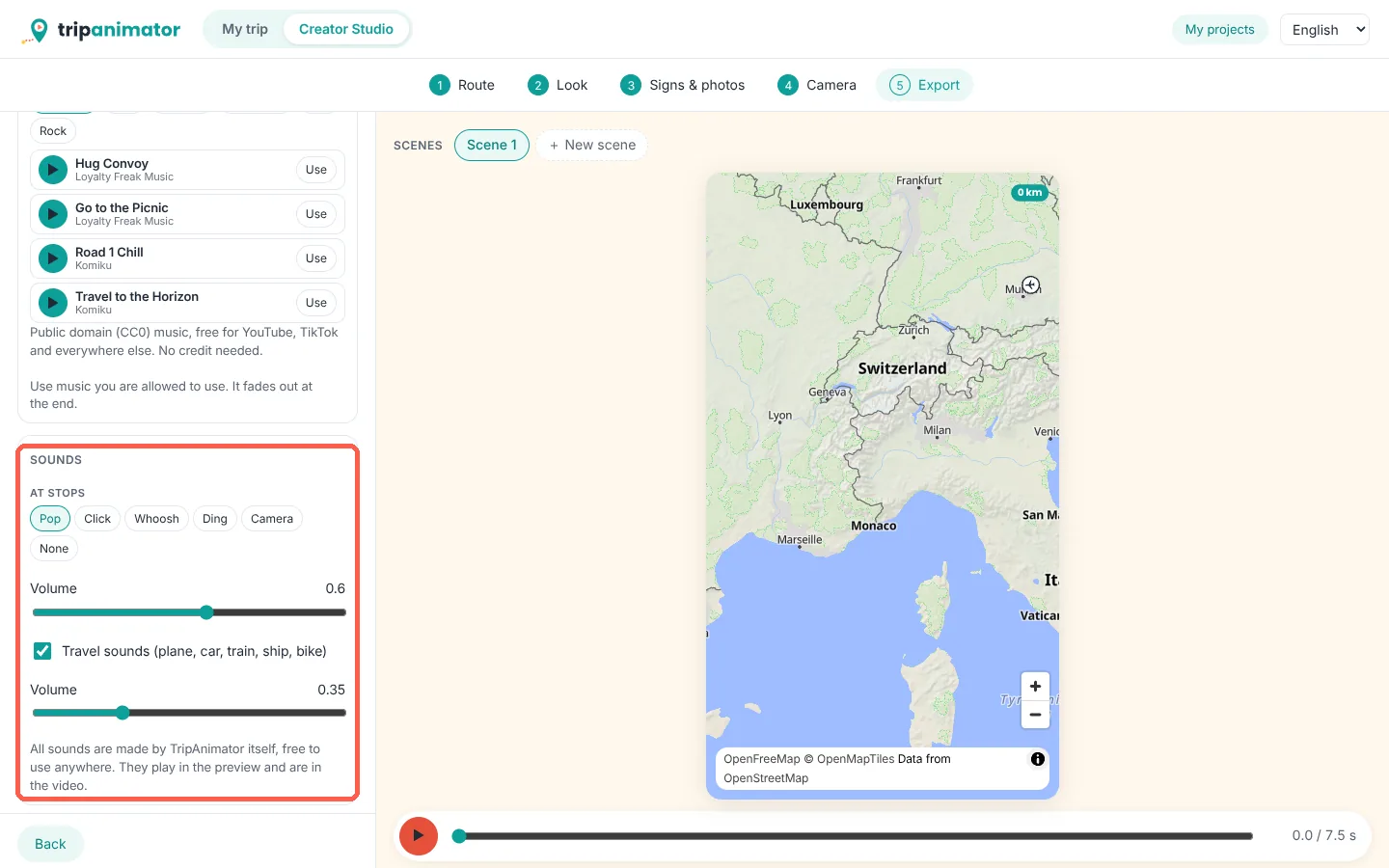
- Go to the last step (Export or Get your video) and scroll to Sounds.
- Under At stops, choose Pop, Click, Whoosh, Ding, Camera or None.
- Set the volume.
- Tick Travel sounds (plane, car, train, ship, bike) and set their volume.
- Play the preview and listen.
Good to know
- With music, keep the sounds a bit quieter so the music stays in front.
- For your own edit in Premiere, DaVinci or Final Cut you can switch sounds off and add your own later.
Related help
Try it in the appFree, no sign-up. Your photos stay on your device.
Open the app