
Add your photos (My trip)
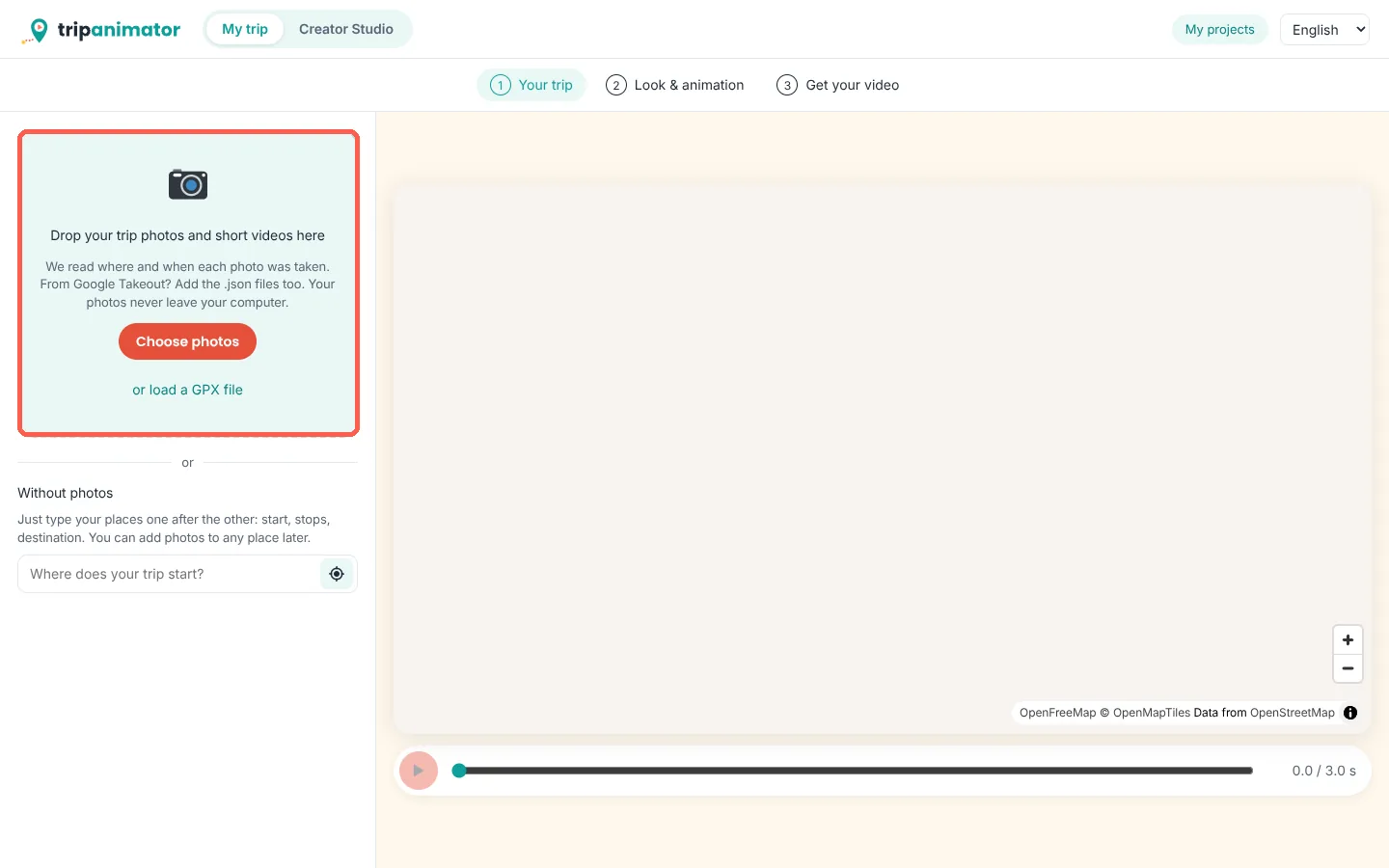
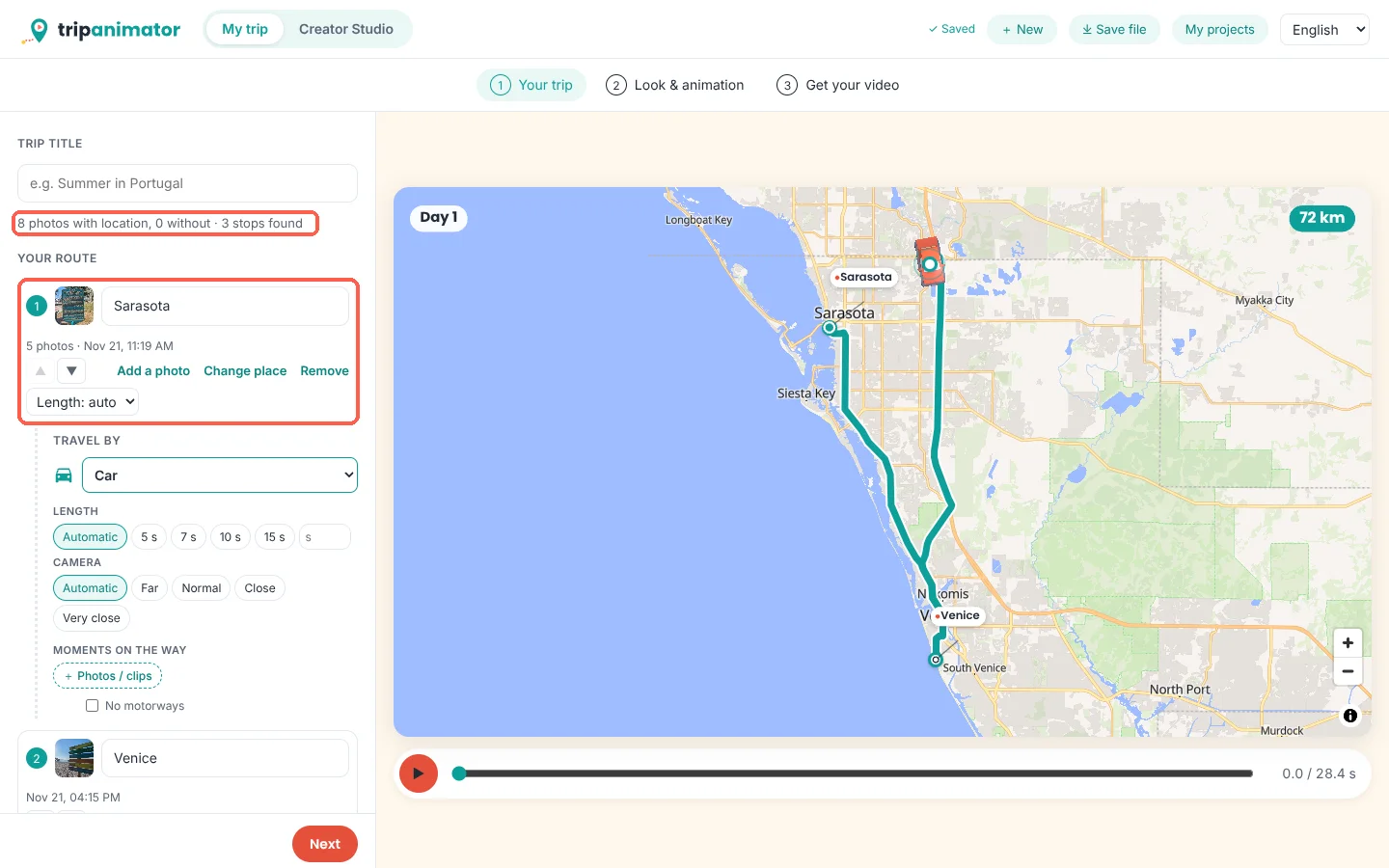
In step 1 of My trip you drop in your photos and short videos. TripAnimator reads where and when each photo was taken and groups them into stops on the map.
Step by step
- Open the app and choose My trip.
- Drag your photos and short videos onto the drop area, or click Choose photos.
- Wait a moment while the places are read. The stops appear on the map and in the list.
- Give your trip a title, for example “Summer in Portugal”.
Good to know
- Original photos from your camera app usually contain the location. Photos sent through messenger apps often do not.
- For short videos you choose a part of 2 to 8 seconds that plays at the stop.
- Your photos stay on your device, nothing is uploaded.
- You can add more photos to any stop later with Add a photo.
Related help
Try it in the appFree, no sign-up. Your photos stay on your device.
Open the app